In short
The invitation’s Invitation tab has six parts: Wording, Opening page, Header card, Field colors, Reply questions and Sponsors. A phone beside the editor shows exactly what guests will see as you work. In the Linxy App, the Design row opens the same designer inside the app.
On this page
The opening page
Turn on Open with a full-screen page and guests see a full-screen page first, then tap to open the invitation. Start from a layout — Classic, Script, Modern or Blank — which is filled in with your Occasion’s own name, date and place.
| To… | Do this |
|---|---|
| Add something | Choose + Text, + Monogram, + Ornament or + Image or logo. Up to 20 items |
| Move it | Drag it on the phone-shaped canvas |
| Change it | Tap it, then change the words, font, italic, size and color |
| Center it | Center across |
| Remove it | Remove, or the ✕ beside it in Layers |
| Change the background | Pick a background swatch, or any color |
At the bottom of the page sit Tap to open and, if you have a Presenting sponsor, a Presented by line.
Using your own design
Choose My own design and upload an image made in Canva, Photoshop, Illustrator or any design app. You can still place text, a monogram and logos on top.
| For best results | |
|---|---|
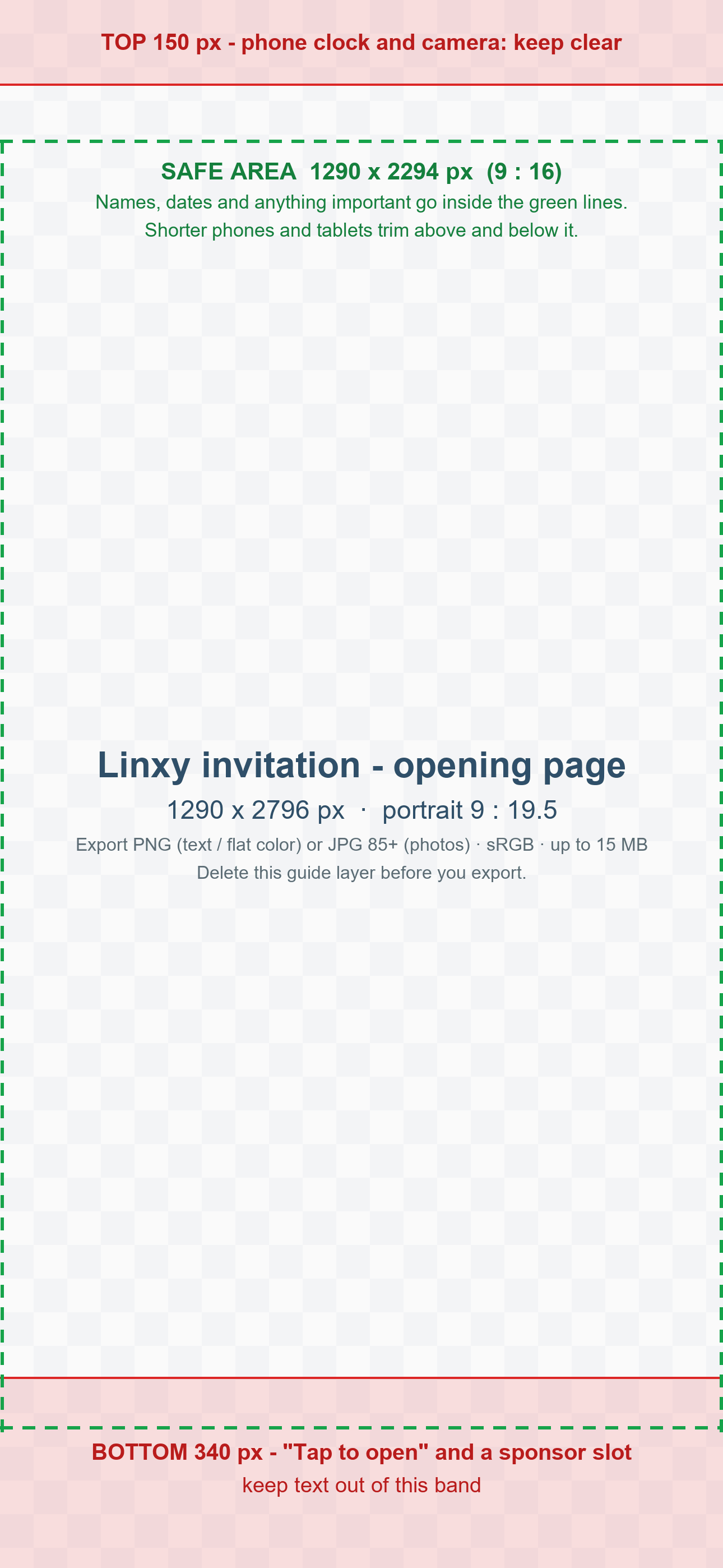
| Size | 1290 × 2796 px, portrait (9 : 19.5). At least 1080 × 2340 px. Larger files are scaled down |
| Keep it safe | Names, dates and anything important inside the center 1290 × 2294 px. Shorter phones and tablets trim the top and bottom |
| Leave room | Keep the top 150 px clear (phone clock and camera) and the bottom 340 px free of text |
| Format | PNG for text or flat color; JPG (quality 85+) for photos. sRGB color, up to 15 MB |
| Resolution | Pixel size is what counts; 72 or 300 DPI makes no difference on a screen |
The editor links to a PNG template with the safe zones marked. In Canva, use Create a design → Custom size → 1290 × 2796 px. Fill screen or Show all chooses how the design fits the phone, and Show safe zones and Preview on (tall phone, shorter phone, tablet) help you check it.
The header card
The header is the cover photo with your title over it. Choose a headline font (each is shown in your own title), a text color — including colors picked from your cover photo, marked ✦ — what sits behind the text (dark fade, light fade, solid panel, frosted panel, or none) and how strong it is, and whether the text sits at the top, middle or bottom.
Photo framing sits at the top of the Header card tab. If your photo isn’t cropped for the header, drag it inside the frame to choose which part shows, and use Zoom to fill the space or cut out an edge. Reset puts it back to centered at 100%. The frame shows the header as guests see it in the Linxy App; on wider screens, such as the web page guests see before they install the app, a little more of the photo shows at the sides. You can also move the photo with the arrow keys once the frame is selected.
Field colors
Choose a light color for the cards that hold the date, the place and the reply: white, champagne, blush, sage, sky, lavender, stone, Match (a tint that goes with your header), or any light color. Choose the card style (soft shadow, outline or flat) and whether the page behind the cards is white or a matching tint. Text stays dark and readable on every choice.
Saving and previewing
Nothing is saved until you choose Save draft or Save and keep published. Use Show opening page again under the phone to replay the opening page. Guests see the design in the Linxy App and on the invitation’s web page.
Related reading: Reply questions and required answers, Sponsors on invitations, and Creating an Occasion and its invitation.